A SCORM LMS for courses with coaching and community
Bring your existing SCORM modules into SchoolMaker. Let your clients work through interactive lessons, then help them apply what they learn with practical steps, feedback and coaching.
Join more than 1 800 experts training 500 000+ students
and start publishing your course today


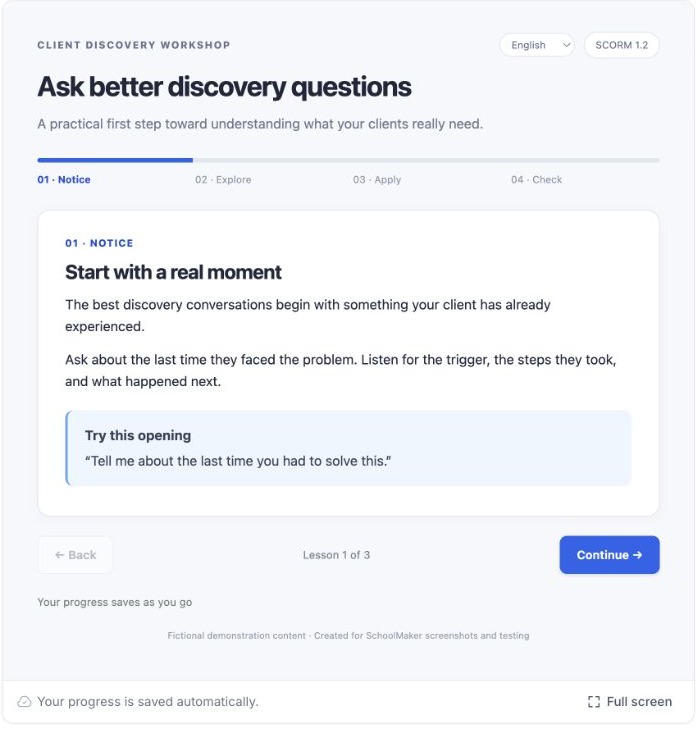
SCORM 1.2 and 2004 package imports. Test a representative package before moving your full library. Read the SCORM import guide
From an exported module to a lesson your clients can resume.
-
Export your SCORM package
Keep the .zip produced by your authoring tool intact.
-
Import it into a program
Each package becomes a SCORM lesson in your chosen section.
-
Teach, track and follow up
Members resume their module; completion feeds into their course progress.
Reuse the modules you already have
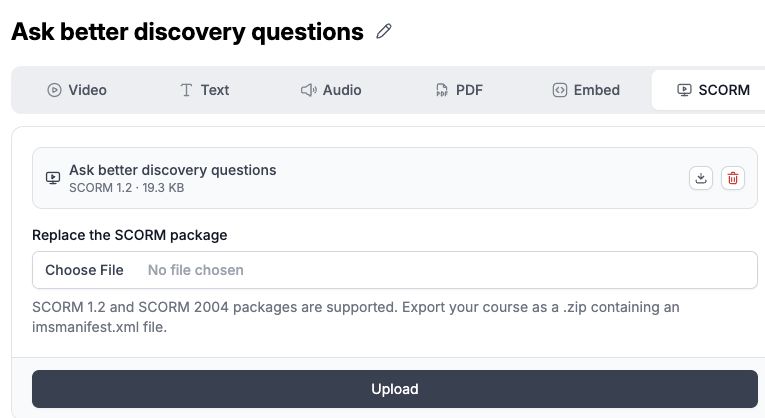
Import SCORM 1.2 or SCORM 2004 .zip files, including packages exported from tools such as Articulate Storyline, Rise, iSpring or Captivate. Your members play the module inside their SchoolMaker lesson. You keep the interactive content you created and organize it alongside your other course materials.
Let members pick up where they left off
SchoolMaker saves each member’s position, answers, score and session time. When they return, the module can resume their saved attempt. When the module reports completion or the required passing score, its lesson completion step is validated automatically, so progress does not depend on a manual checkbox.

Import a library without creating every lesson by hand
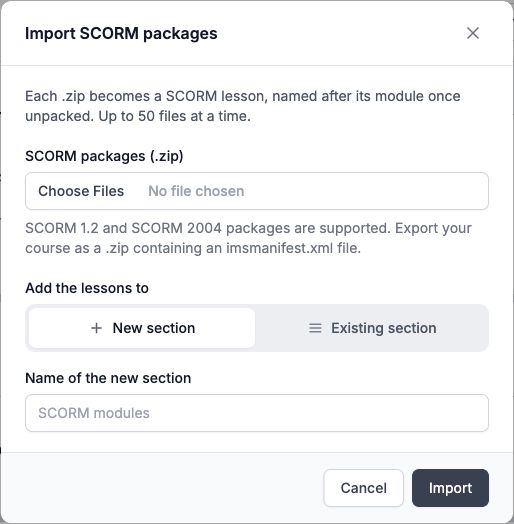
Add up to 50 SCORM packages at once to a new or existing section. Each package becomes its own lesson, named after the module once processed. You can also upload or replace a package directly from a SCORM lesson. A replacement only takes over once it has processed successfully.
Keep a copy of your original packages
When content export is enabled, the school owner can download the original packages individually or prepare one archive containing the program’s SCORM packages. This gives you back the packages you uploaded; it does not turn native SchoolMaker lessons into SCORM files.
Your original SCORM packages
- SCORM 1.2 · .zip
- SCORM 2004 · .zip
Download the original files when content export is enabled.
Screenshots from a local SchoolMaker test school with fictional demonstration content. Module design depends on your authoring tool.
The module is one part of the learning experience
SchoolMaker fits course creators and training providers who already have SCORM content and want to support clients beyond the module. Put interactive modules alongside videos and resources, use practical lesson steps to ask clients to apply a skill, and give them a place to ask questions in your community or discuss their progress in coaching. SCORM completion can feed into SchoolMaker’s existing progression, badges and certificates.
Before you import your first module
Check the supported formats, saved progress and package updates before your first import.
A school owner or administrator enables SCORM lessons in Settings → General → Lessons. Then select SCORM as a lesson type and upload the package, or use Import SCORM packages from a program. SCORM is off by default.
SchoolMaker imports SCORM 1.2 and SCORM 2004 .zip packages. In a package with several learning objects (SCOs), only the first launchable object is played. Full SCORM 2004 sequencing and navigation are not implemented. Check a real package from your authoring tool before importing a library.
Yes. Completed steps stay completed, but replacing the package resets members’ saved position in that module. If the replacement cannot be processed, the previous working package remains available.
Create and edit the module in your authoring tool, then export it as SCORM and import the ZIP into SchoolMaker. SchoolMaker hosts the module and connects its completion to your course progression. You can build the rest of your course with native lessons, practical steps and community discussions.
Any question? Contact us
Contact usRead the SCORM import guide · See SchoolMaker plans
Keep exploring


Give your SCORM modules a place in a complete course
Join more than 1 800 experts training 500 000+ students
and start publishing your course today